 Fortress Free beta
Mac security
you can see.
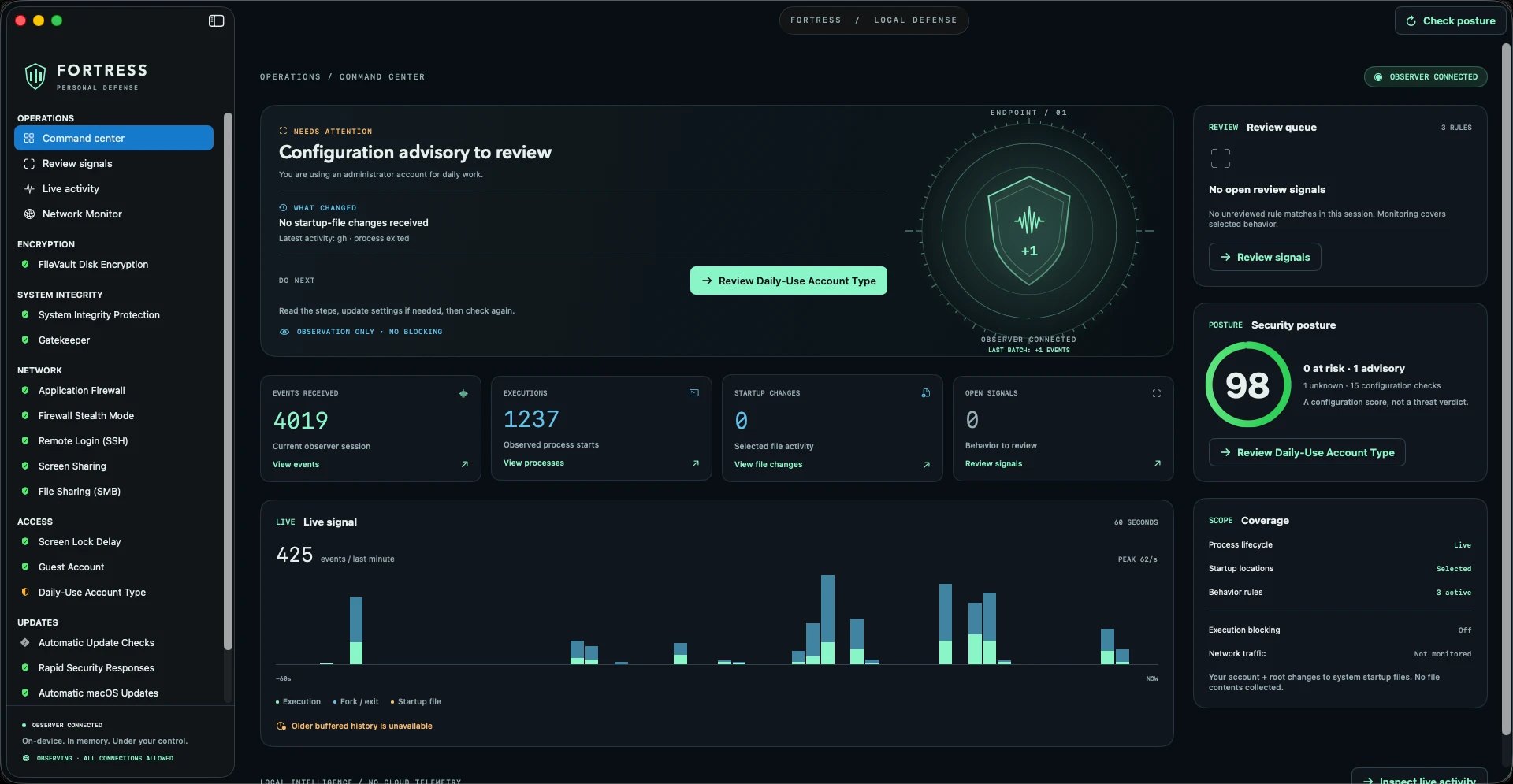
Fortress checks the security settings on your Mac, shows you what is running and what is connecting, and tells you in plain language what needs attention. Everything stays on your Mac.
What it does
Three clear views of one Mac.
-
01 Settings
Check the settings that matter.
Fortress runs 15 checks across disk encryption, system integrity, firewall and sharing, screen lock and accounts, software updates and backups. Each one says what it found, why it matters and how to fix it.
One score for the whole Mac.
-
02 Activity
See what runs.
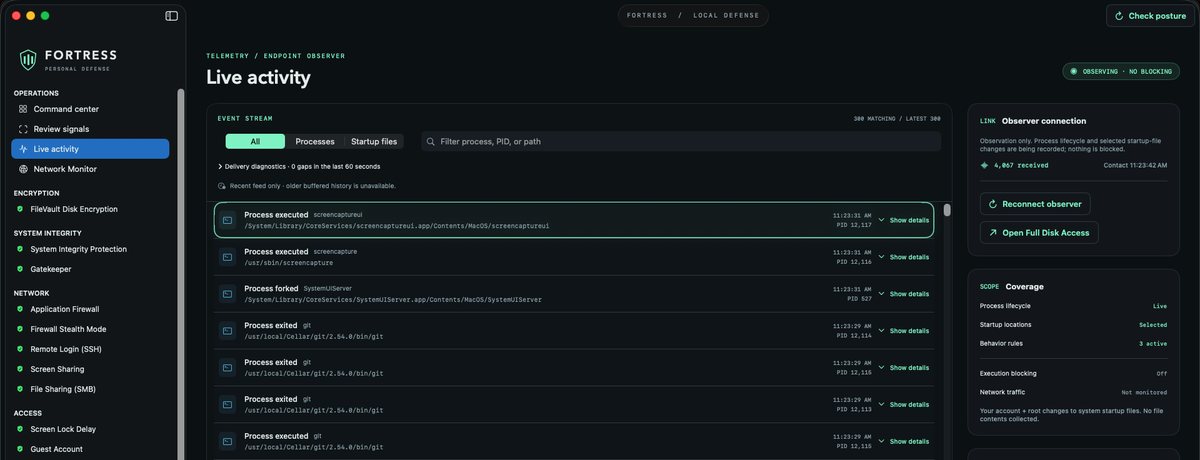
Turn on the Endpoint Observer and Fortress shows programs as they start and exit, and notices changes to the files macOS uses to launch things at startup. Anything worth a second look lands in a short review queue.
Observation only. Nothing is blocked.
-
03 Network
See what connects.
Turn on the Network Monitor to see which apps are opening connections, incoming and outgoing, and where they lead. Fortress sees that a connection happened, not what was sent.
Every connection is allowed unless you add a rule.
Plainly
What Fortress is not.
- Not antivirus.
- Fortress does not scan for malware or remove it. A green shield means the checks found nothing that needs attention, not that your Mac is clean.
- Not a fixer.
- It never changes your security settings. It shows you the steps, you make the change, and it checks again.
- Not a blocker, unless you ask.
- It watches. No program is stopped and no connection is refused unless you add a rule yourself.
- Not a cloud service.
- No account, no sign-in, no telemetry. What Fortress sees stays on your Mac.
Install
Three steps, a few minutes.
-
Download and unzip.
Open the Fortress folder. It holds the app and a short Read Me.
-
Drag Fortress into Applications.
Then open it. macOS asks once to confirm an app downloaded from the internet.
-
Follow the setup guide.
It walks you through three approvals in System Settings. Choose Set up later and the settings checks still work.
Questions
The access it asks for, and why.
Fortress asks macOS for more than most apps do. Here is what each request is for, and what the less obvious parts of the app mean.
Why does macOS ask me to approve two system extensions?
Watching what runs and watching what connects are two separate jobs in macOS, each with its own permission. The Endpoint Observer uses Apple’s Endpoint Security framework to see programs start and exit. The Network Monitor uses Apple’s Network Extension framework to see connections. macOS makes you approve each one yourself in System Settings, and no app can approve them for you.
Both are optional. Leave either one off and the rest of Fortress still works.
Why does it need Full Disk Access?
Apple requires Full Disk Access for anything that uses Endpoint Security, because it can see activity anywhere on the disk. Fortress uses it to notice programs starting and changes to startup files. It does not read or collect the contents of your files.
The switch belongs on the separate entry named com.scottdesapio.fortress.endpoint.systemextension, not on Fortress itself. The extension is the part doing the observing, so turning it on for the app alone is not enough.
macOS says Fortress wants to “filter network content.” Is it reading my traffic?
No. That is the wording macOS uses for every app of this kind. Fortress records which app opened a connection, the address and port it reached, the direction and the time. It does not inspect what was sent or received.
With no rules set, every connection is allowed exactly as before.
Does anything leave my Mac?
No. Checks and monitoring run on your Mac. There is no account, no telemetry and no lookup against an online service. Fortress opens a web page only when you click a link.
Activity history is kept in memory, limited to the most recent few thousand events, and cleared when monitoring restarts. Fortress does not collect command-line arguments, file contents or passwords.
Why isn’t it on the Mac App Store?
App Store apps have to run in a sandbox, which rules out the system tools Fortress uses to read your security settings, and Apple does not allow Endpoint Security extensions there. Fortress is distributed directly instead. It is signed with an Apple Developer ID and notarized by Apple, so macOS can verify who made it and that it has not been altered.
What is a review signal? Does it mean I have malware?
No. A review signal is activity that matched one of a few simple rules for behavior worth a second look, such as an unsigned program running from Downloads or a temporary folder. Installers and developer tools can trigger one. Fortress shows you the evidence and leaves the judgment to you. Marking a signal reviewed does not trust that program or hide it next time.
Why does a check say Unknown?
Fortress could not read that setting, so it says so instead of guessing. Only settings it could verify count as secure. Unknown results are left out of the score. The score describes your configuration; it is not a verdict on threats.
What are app rules and isolation?
Two optional controls in the Network Monitor. An app rule blocks one app’s connections. Isolation cuts the Mac off from the network. Both are off unless you turn them on.
They are the least tested part of this beta. Please leave them off for now.
How finished is it?
It is an early beta and it is free. This copy is signed and notarized by Apple, which covers how it is packaged, not how well it works. Testing on macOS 14, on Apple silicon and on a freshly set up Mac is still under way, so expect rough edges.
How do I update?
Fortress does not update itself yet. When a new version is posted here, download it and replace the copy in your Applications folder.
How do I uninstall it?
Quit Fortress and drag it from Applications to the Trash. That is all.
Something isn’t working. Who do I tell?
Send a note through Scott’s contact page. The form opens with Fortress and this version already filled in. It helps to add your macOS version, whether your Mac is Apple silicon or Intel, and what you saw.